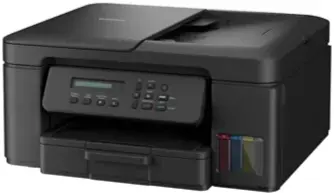
The Brother DCP-T730DW driver is a must-have tool that allows your PC to connect with the printer to carry out printing, scanning, and copying tasks. It makes your printer work seamlessly with Windows, macOS, and other compatible operating systems, and unlocks printer functionalities like wireless and double-sided printing. Updating to the most recent Brother DCP-T730DW driver is one way to improve performance, resolve compatibility issues, and ensure reliable operation of your printer.
Brother DCP-T730DW Drivers for Windows
Brother DCP-T730DW Drivers for macOS
Brother DCP-T730DW Drivers for Linux
Brother DCP-T730DW driver is the software that enables your PC to interact with the printer for performing printing, scanning, and copying operations. Besides making the printer fully compatible with Windows, macOS, and other supported operating systems, it also unlocks all printer features such as wireless connectivity and duplex printing. Apart from ensuring smooth operation, installing an up-to-date Brother DCP-T730DW driver can even resolve compatibility issues and provide reliable printer performance.
Brother DCP-T730DW Driver for Windows
The Brother DCP-T730DW is a multifunctional ink tank printer tailored to the needs of home offices and small businesses. Installing the appropriate Windows driver is essential to perform functions like printing, scanning, copying, wireless connectivity, and duplex printing without any issues. Brother provides Windows drivers and software packages for operating systems such as Windows 11 and Windows 10.
Available Driver Downloads
Brother offers several driver packages that Windows users can choose from:
Full Driver & Software Package
Contents:
- Printer Driver
- Scanner Driver
- Brother utilities
- Wireless setup tools
- Brother iPrint&Scan software
Since it enables users to access all printer features, it is the package most users prefer to download.
Printer Driver & Scanner Driver for USB
This driver package includes only the essential printer and scanner drivers designed for USB connections. It can be useful for users who do not want to install additional Brother software on their devices.
Printer Driver Only
This is a lightweight option that installs only the printer driver.
How to Install the Brother DCP-T730DW Driver on Windows
- Head over to Brother’s official support page.
- Select your Windows version.
- Download the Full Driver & Software Package.
- Start the downloaded installer by right-clicking it and selecting Run as Administrator.
- Follow the instructions provided by the installation wizard.
- Choose one of the connection methods:
- Direct USB Connection
- Wireless Network Connection
- Complete the setup and restart your computer if prompted.
You may also use Brother’s EasySetup tool, which helps users with initial printer installation, network configuration, and software installation.
Key Printer Features Supported by the Driver
By installing the proper driver, you can access the full range of printer features along with seamless printing and scanning functionality:
- Print, Scan, and Copy operations
- Automatic duplex printing
- Wireless printing via Wi-Fi and Wi-Fi Direct
- Mobile printing support
- Automatic Document Feeder (ADF) with a capacity of 20 sheets
- High-resolution printing up to 1200 × 6000 dpi on Windows
- Brother Mobile Connect compatibility
This combination of features makes the DCP-T730DW a suitable printer for both home and office use.
Common Driver Issues and Solutions
Installation Fails
- Make sure you download the latest driver package from the Brother website.
- Temporarily disable your antivirus program during installation.
- Launch the installer as an Administrator.
Printer Not Detected
- Check the USB cable or network connection.
- Restart both the printer and the computer.
- Reinstall the printer driver if necessary.
Scanner Not Functioning
- Use the full installation package instead of the standalone printer driver.
- Verify that the scanner appears in Windows Device Manager.
Poor Wireless Connectivity
- Reconnect the printer to the Wi-Fi network.
- Use Brother’s Network Connection Repair Tool if available.
- Ensure that both the printer and the PC are connected to the same network.
Brother DCP-T730DW Driver for macOS
The Brother DCP-T730DW is a handy ink tank all-in-one printer that is capable of printing, scanning, and copying documents in the comfort of the home or a small office. For Apple computer users to get the most out of their printer, it is necessary to install the correct Brother DCP-T730DW driver for macOS. The right driver unlocks all the printer’s features, such as wireless printing, scanning, and maintenance utilities.
Brother continuously releases dedicated macOS drivers and software packages for the DCP-T730DW on its official support website. This printer model is compatible with various recent macOS versions, including macOS 12 Monterey, macOS 13 Ventura, macOS 14 Sonoma, macOS 15 Sequoia, and other newer supported versions.
Features of the Brother DCP-T730DW macOS Driver
With the authentic driver installation package, you will get access to various printer functions, including:
- Top-notch color and black-and-white printing results
- Wireless printing across a Wi-Fi connection
- USB printing support
- Scan documents and photos
- Printer status monitoring
- Ink level management
- Network printer configuration
- Firmware update support
The Full Driver & Software Package contains everything you need, including drivers and small applications for your printer to work properly on macOS systems.
Supported macOS Versions
Brother has been releasing updates that enable printing on the DCP-T730DW with the latest versions of Apple operating systems. The list of supported versions is as follows:
-
- macOS 26.x
- macOS 15.x
- macOS 14.x
- macOS 13.x
Users running older macOS versions may also be able to find some legacy drivers through Brother’s download archive; however, the software might not be kept up to date for those versions.
How to Install the Brother DCP-T730DW Driver on macOS
These are the steps you should follow to install the printer on your Mac:
- Get the newest Full Driver & Software Package from Brother’s official support site.
- Launch the downloaded file.
- Follow the instructions on the screen provided by the installation wizard.
- Connect the device using USB or select the wireless network option.
- Complete the installation process.
- Reboot your Mac if prompted.
- Navigate to System Settings > Printers & Scanners and check whether the Brother DCP-T730DW is listed.
Additionally, Brother offers an EasySetup tool that quickly installs all required software and performs network configuration.
Common macOS Driver Issues
Some users may run into problems after upgrading macOS or installing the printer for the first time. The most frequently reported problems are:
Printer Not Detected
- Check whether the USB cable is properly connected.
- Make sure that both the printer and Mac are using the same Wi-Fi network.
- Restart both devices and reinstall the driver.
Scanner Not Working
- Install the entire package rather than only the printer driver.
- Allow scanner permissions in macOS settings.
Offline Printer Status
- Remove and re-add the printer from Printers & Scanners.
- Check the network connection and printer IP address.
Driver Compatibility Problems
- Get the latest driver version compatible with your specific macOS release.
- Update the printer firmware if possible. Brother advises using the newest firmware for the best performance.
Additional Software
Brother provides the following macOS utilities to enhance printer functions:
- Brother iPrint&Scan
- Firmware Update Tool
- Network Connection Utilities
- Wireless Setup Helper
These applications provide support for scanning, firmware updates, and network troubleshooting capabilities.
Brother DCP-T730DW Linux Driver
Brother DCP-T730DW can work on Linux with Brother’s legitimate Linux printer and scanner drivers. Brother offers DEB files (for Ubuntu, Linux Mint, Debian, and other related Linux distributions) and RPM files (for Fedora, CentOS, openSUSE, and other related distributions) to its users.
Linux Driver Downloads
The Linux packages presently offered are:
- Linux Printer Driver (DEB)
- Linux Printer Driver (RPM)
- Scanner Driver (32-bit and 64-bit)
- Scan-key Tool
- Driver Install Tool (recommended)
Recommended Installation Method
Brother strongly recommends that you use their Driver Install Tool, which will automatically install the:
- LPR driver
- CUPS Wrapper driver
- Scanner driver (for multifunction models)
Ubuntu, Linux Mint, Debian
- First, download the Driver Install Tool from Brother’s site.
- Launch Terminal by pressing Ctrl + Alt + T or find it in your system.
- Go to your Downloads folder:
cd ~/Downloads
- Make the installer executable:
chmod +x linux-brprinter-installer-*
- Start the installer:
sudo bash linux-brprinter-installer-*
- You will be asked to type:
DCP-T730DW
- At last, follow the instructions presented on the screen to finish the installation.
Manual Driver Installation
If you decide to install the drivers manually:
Install Printer Driver
sudo dpkg -i Brother-InkTank-DCP-T730DW-Linux-printer-driver-deb-package.deb
Install Scanner Driver (32-bit)
sudo dpkg -i Brother-InkTank-DCP-T730DW-Linux-Scanner-driver-32-bit-deb-package.deb
Install Scanner Driver (64-bit)
sudo dpkg -i Brother-InkTank-DCP-T730DW-Linux-Scanner-driver-64-bit-deb-package.deb
For RPM-based Distributions
Install Printer Driver
sudo rpm -ivh Brother-InkTank-DCP-T730DW-Linux-printer-driver-rpm-package.rpm
Install Scanner Driver (32-bit)
sudo rpm -ivh Brother-InkTank-DCP-T730DW-Linux-Scanner-driver-32-bit-rpm-package.rpm
Install Scanner Driver (64-bit)
sudo rpm -ivh Brother-InkTank-DCP-T730DW-Linux-Scanner-driver-64-bit-rpm-package.rpm
Supported Linux Distributions
You can usually find the Brother DCP-T730DW driver working with the following:
- Ubuntu
- Linux Mint
- Debian
- Fedora
- CentOS
- Red Hat Enterprise Linux
- openSUSE
depending on your choice of Brother’s DEB or RPM packages.
Troubleshooting Tips
Please try the following if your printer still does not get discovered after you have installed the driver(s):
Check if CUPS is installed and running:
systemctl status cups
Restart CUPS:
sudo systemctl restart cups
Look up the printers the system has identified:
lpinfo -v
If you are using network printing, be sure to check that the printer and your Linux PC are connected to the same network.
Technical Details
| Title | Brother DCP-T730DW Drivers |
|---|---|
| Version | Varies with device |
| Requirements |
|
| Language | English |
| License | Free |
| Manufacturer | Brother Industries, Ltd. |