
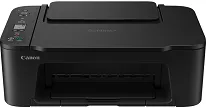
The Canon PIXMA TS3640 is a printer that is perfectly designed for everyday home printing of documents, schoolwork, tickets, and photos from time to time. To ensure that the computer recognizes the printer and operates with the most suitable settings, the appropriate driver is needed. The driver makes it possible for Windows or macOS to identify the printer correctly, to select the settings based on the type of paper and quality, and to maintain the print queue without issues. Once the appropriate software is in place, almost all the common problems, such as “printer offline,” non-existent paper sizes, slow printing, or jobs stuck in the queue, will be avoided.
Canon PIXMA TS3640 Driver for Windows
What the TS3640 driver actually enables
Installing the proper Canon PIXMA TS3640 driver isn’t just about “making it print.” It unlocks the features your operating system can’t handle well on its own:
-
Reliable USB and Wi-Fi printing (depending on your setup)
-
Correct page scaling, borderless options, and paper-size matching
-
Better photo output control (quality modes, color handling, layout options)
-
Access to maintenance tools (nozzle check, cleaning, alignment)
-
Clearer printer status feedback and fewer queue errors
Quick prep checklist before installing
Do these small steps first to prevent installation issues:
-
Disconnect the USB cable (if you plan to install by USB, connect only when the installer asks)
-
Restart the computer if you recently removed another printer driver
-
Confirm whether you’ll use USB or Wi-Fi
-
On Wi-Fi setups, make sure the printer and computer are on the same network
-
Temporarily pause third-party antivirus only if it blocks installers (turn it back on after)
Driver compatibility overview
Choose the driver that matches your system type:
-
Windows: Windows 11 / 10 / 8.1 / 8 / 7 (select the correct 32-bit or 64-bit package)
-
macOS: Pick the build that matches your macOS version and Apple Silicon/Intel if offered
Tip: If you’re unsure on Windows, open Settings → System → About and check System type (64-bit vs 32-bit).
Installing the Canon PIXMA TS3640 driver on Windows
Option 1: Standard installer method (recommended)
-
Download the TS3640 driver package for your exact Windows version.
-
Open the installer (usually from the Downloads folder).
-
Accept the prompts and choose your connection type:
-
Wireless (Wi-Fi) if printing over network
-
USB if connecting directly
-
-
If you chose USB, plug the cable in only when prompted.
-
Finish setup and print a test page.
Option 2: If Windows detects the printer but prints poorly
Sometimes Windows uses a basic driver that prints but lacks proper options.
-
Install the full TS3640 driver package.
-
Remove the old printer entry (optional but helps):
-
Settings → Bluetooth & devices → Printers & scanners → select printer → Remove
-
-
Add the printer again after installing the full driver.
Installing on macOS (simple and clean)
-
Download the TS3640 driver/software package made for your macOS version.
-
Open the file and run the installer.
-
After installation, go to:
-
System Settings → Printers & Scanners
-
-
Click Add Printer, choose the TS3640, and confirm.
-
Print a test page and verify you can change paper size and quality settings.
If macOS blocks the installer, go to System Settings → Privacy & Security and allow the installer if prompted.
Wireless setup tips that prevent most “offline” problems
-
Keep the printer within good Wi-Fi range (weak signal causes random disconnects)
-
Avoid switching between 2.4 GHz and 5 GHz mid-setup if your router separates them
-
If printing works once and then fails, restart:
-
printer → 2) router → 3) computer
-
-
Make sure the printer isn’t saved on a “guest” network while your computer is on the main network
Signs you should update or reinstall the driver
-
Print jobs stay stuck on “Spooling” or never start
-
The printer shows as “Offline” even when it’s on
-
Missing paper sizes, duplex options, or photo quality controls
-
Random disconnects over Wi-Fi that didn’t happen before
-
After a major Windows or macOS update, printing becomes unstable
Keeping the TS3640 running smoothly
-
Run a nozzle check if colors look faded or lines appear
-
Do cleaning/alignment only when needed (overdoing it wastes ink)
-
Keep the driver updated when your operating system updates
Download Canon PIXMA TS3640 driver from Canon website.