
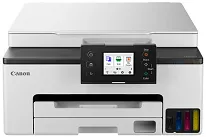
Canon MegaTank MAXIFY GX1020 driver is the program through which the printer and computer communicate effectively. To illustrate, the software is responsible for allowing the print, scan, and maintenance operations to be carried out properly. Therefore, you should install it right after the initial installation or whenever your printer gets an update. It mostly works for Windows and macOS platforms and hence needs a compatible OS version, administrator rights, a good USB or network connection, and enough free storage and system resources for its trouble-free working.
Canon MegaTank MAXIFY GX1020 Driver for Windows
Driver and Software for Mac OS
How to Download and Set Up the Canon MAXIFY GX1020 Driver
The first thing is to find and select the correct driver that matches your Windows version and system type from the download options list above. After downloading the installation file, you will be able to install the driver just by following the prompts on the screen that will guide you through the entire process step-by-step, for instance, by telling you to close any running applications and prepare the system. With the installation of the Canon MegaTank MAXIFY GX1020 driver, you can send printing and scanning commands to your printer accurately, and your device will comply with these commands correctly.
USB Installation
Start the installation up to the point of connecting the printer. Only use the USB cable when a message pops up telling you to plug it in. Afterward, allow Windows to identify the device and complete the setup. Please do not unplug the cable until the setup tells you that the printer is ready. Besides, don’t use USB hubs to avoid interruptions.
Wireless (Wi-Fi) Installation
If the printer installation is wireless, pick the wireless option. Also, make sure that the printer and the PC are connected to the same network. Submit the network password when prompted for it, and after discovering the printer automatically. The setup program installs the printer on your computer and configures it with the necessary parameters.
To check if everything is running well, print a test page.
How to Download and Set Up the Canon MAXIFY GX1020 Driver on macOS
First, pick the correct driver file for your macOS version from the download options given above. Run your installation by double-clicking the setup file and follow the on-screen instructions while allowing the permissions when prompted.
Running the process, macOS may prompt you to grant the developer-identified software permission via System Settings. Once you have allowed this, the Canon MegaTank MAXIFY GX1020 driver will complete the installation and fully enable your Mac to communicate with the printer.
Perhaps, you get so worn out from the setup that when the installer inquires what wires you have, you become dispose of the entire system through the window just after it automatically identifies the gadget. However, in case the connection is wireless, both the printer and the Mac have to be on the same Wi-Fi network so that the device can be found easily.
If upon installation, the printer does not show up in your Mac, simply add the printer manually by going to the system’s printer list. After that, print a test page to ensure that it works.
Troubleshooting Common Problems with Your Driver
Sometimes the Canon MegaTank MAXIFY GX1020 driver can cause problems like installation and connectivity. However, most of the time recognized inspections and adjustments can solve such problems.
The printer is not detected
The wrong connection method is often the cause, or the device might be turned off during setup. Make sure the printer and computer are properly connected, restart both devices, and repeat the detection process to renew the connection.
The scanner is not working
In case the essential background services have not been started or the necessary permissions have not been granted then the functionalities of the scanner cannot be used. Try closing and restarting the scanning app, make sure the scanner driver has been installed properly and also check that the security settings of the system allow the app to access the connected devices.
The printer is offline
The printer goes into the offline mode after a network change or system update. Configure the printer as the default device, clear any paused print jobs, and go ahead with a reconnection to the same network your computer is using.
The driver has been installed, but no printing
This kind of situation arises if the wrong trip was selected or the spooler services were somehow activated. Uninstall the printer, reboot the system, download the correct driver version, add the printer, and then finalize it with the settings.
Do an Update or Reinstall: What to Try First
In case the Canon MegaTank MAXIFY GX1020 driver begins to behave oddly, first thing it is a wise idea to think about which would save more time – update or reinstall. For refreshing core driver files while keeping your current settings, fixing minor bugs, small feature glitches, or getting rid of compatibility warnings is usually sufficient to do via updating only. Still, when the driver just won’t load, and printing is halted, or you see irrevocable errors, you are definitely advised to go for a clean reinstall. It will get rid of the damaged parts and set up the driver anew. Additionally, after a major OS update, a reinstall is preferable over an update so that both the new OS and driver are free of conflicts in their operation. Download Canon MegaTank MAXIFY GX1020 driver from Canon website.